 Danish
 English
 German



Salesforce SMS integration


Automatic communication with leads
Set up SMS flows via Salesforce
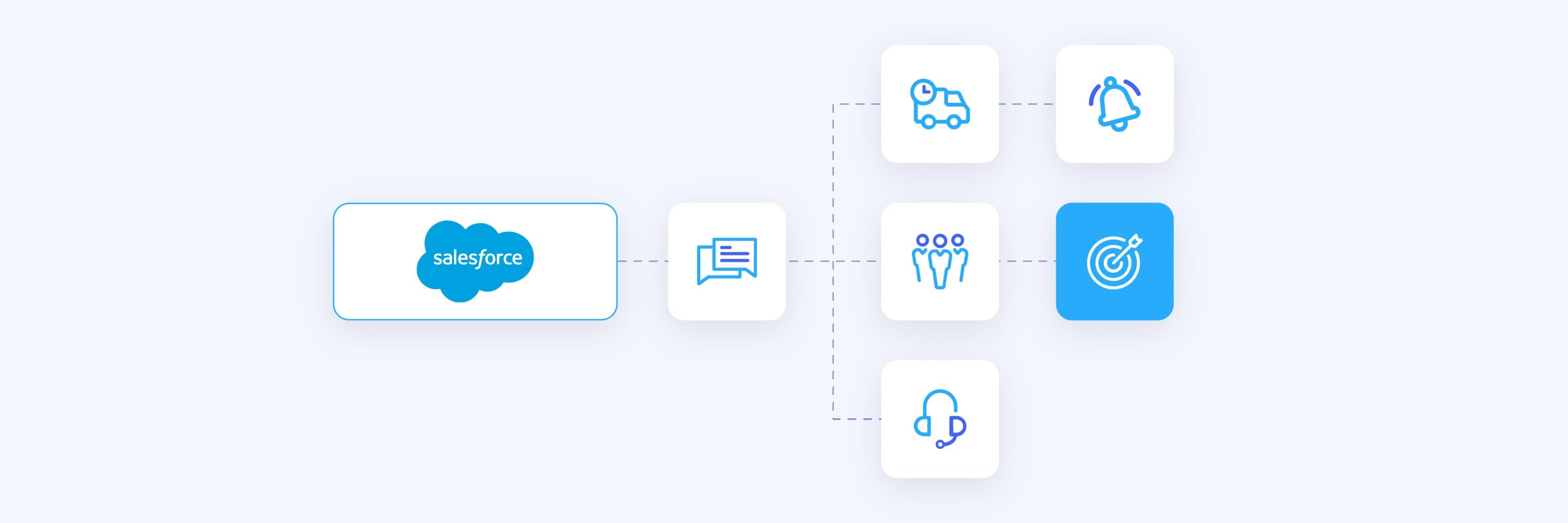
Via GatewayAPI + Zapier or Make, you have the option of setting up SMS flows that new leads can be a part of. This can be based on actions that the user takes, for example if the user goes from being a lead to being a paying customer.
You can also set up Salesforce SMS messaging with a flow that sends a series of predefined messages in a specific interval. However, this must be used with care. When you send SMS messages, you can almost be sure that all the recipients see the message. That also means that you have to make sure that the content of the message is very relevant to the recipients.
Internal use
Get notified immediately when new leads come in
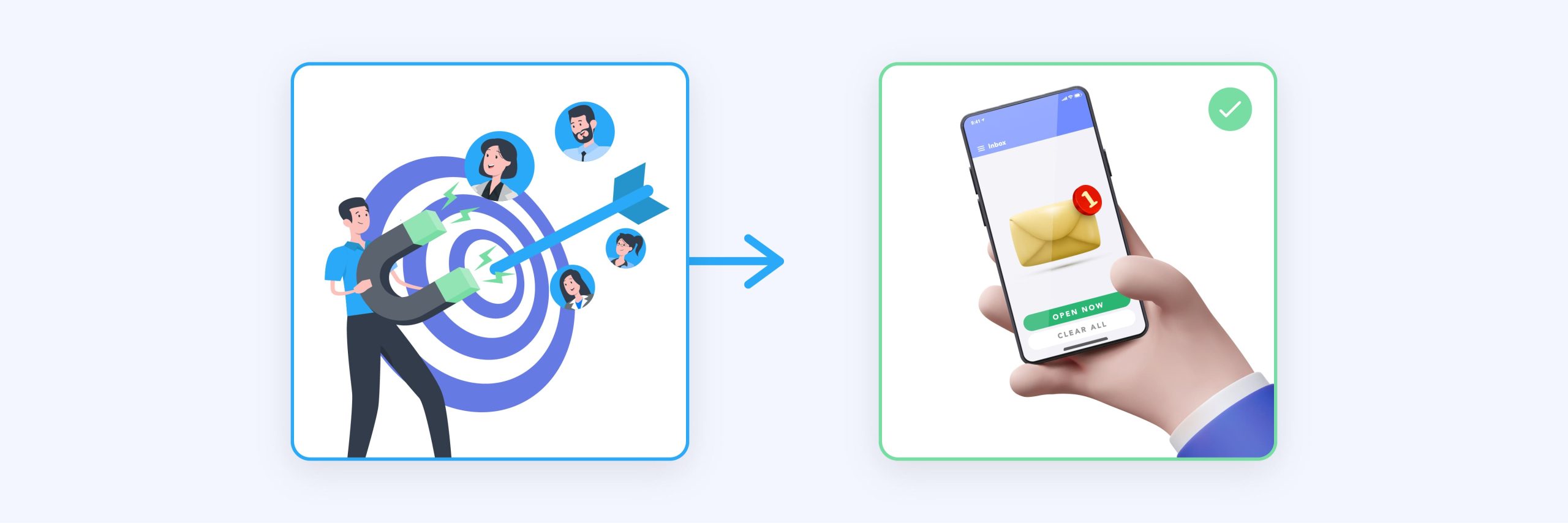
When a new lead is registered, the integration automatically forwards an SMS message via GatewayAPI to the relevant sales staff as soon as a new lead is registered in Salesforce, e.g. via a contact form. This gives you the ability to contact the potential customer immediately.
5,000+ apps to choose from
How Zapier and Make work

Zapier and Make enables you to integrate with thousands of services, apps and systems without having to write a single line of code. You can choose from e-commerce platforms, social media, CRM systems, payment systems, scheduling tools, communication platforms, CMS systems and the entire Google ecosystem when setting up an integration. In fact, Zapier offers over 5,000 apps you can integrate with and Make over 1,000 apps.
Zapier and Make are built around so-called triggers and actions, which can best be described as a series of complex actions that can be connected across apps. All you have to do is combine the triggers and actions in ways that make sense for your business via their intuitive drag and drop interfaces.
An example of a trigger could be that a new lead has entered Salesforce, after which an action could be that an SMS is sent to the sales manager via GatewayAPI.
How to get started
Step by step guide to setting up the integration

If you haven’t already done so, first create a GatewayAPI account. Afterwards, create a Zapier account or a Make account.
We recommend that you use Zapier if you have a single trigger and a simple flow, where Make is better suited for more complex automation flows, where different actions and flows are executed based on previous actions and results.
Once the accounts are created, you can set up your first integrations by following the steps in the guides below.
Set up via Zapier
- Go to your Zapier account.
- Go to “My Apps” in the left menu.
- Search for “GatewayAPI”.
- Click on “Connect”.
- Insert your unique GatewayAPI key, which you can find on your GatewayAPI dashboard under ‘API keys’ and ‘Token’, to start using our app in Zapier.
- Follow this guide to connect your Salesforce account to Zapier.
- You can now start exploring your options and set up integrations that can benefit your business.
Set up via Make
- Go to your Make account.
- Go to “scenarios” in the menu on the left.
- Click on “create a new scenario”.
- Search for GatewayAPI.
- When you set up the app, you will be asked for your unique GatewayAPI key, which you can find on your GatewayAPI dashboard under ‘API keys’ and ‘Token’.
- Follow this guide to connect your Salesforce account to Make.
- Now you are ready to set up exactly the features and automatic actions you want.
No subscriptions
Pay only for the SMS traffic you send

Our pricing model is simple where you only pay for the SMS traffic you send. By default, we have no setup fees or subscriptions.
Go to our pricing section to see our SMS prices for over 200 countries, which are some of the most competitive you can find on the market. In addition, we offer an intuitive user interface, world-class support and a rock-solid uptime of over 99.99% on average.
When using Make, you can complete 1,000 actions/100 mb tasks per month for free. When using Zapier, the limit is five “Zaps” and 100 actions per month.
Do you have a suggestion for an integration?
If your preferred system is not on our list of integrations, then you are welcome to contact support to suggest an integration.